

Manager Training Library
Welcome to UKG
EPPA has created a Conversion Checklist and FAQs to assist in your UKG learning journey. Click to get started:
Getting Started
Use these tools to log in and assist new team in getting into the UKG system:
Training Materials:
Logging In and Authenticating with OKTA
Downloading The UKG Mobile App
Video:
Navigating the Mobile App (Video)
General User Information:
Click below to visit the UKG General User Training site for guidance on using UKG for your personal needs.
General Manager Dashboard
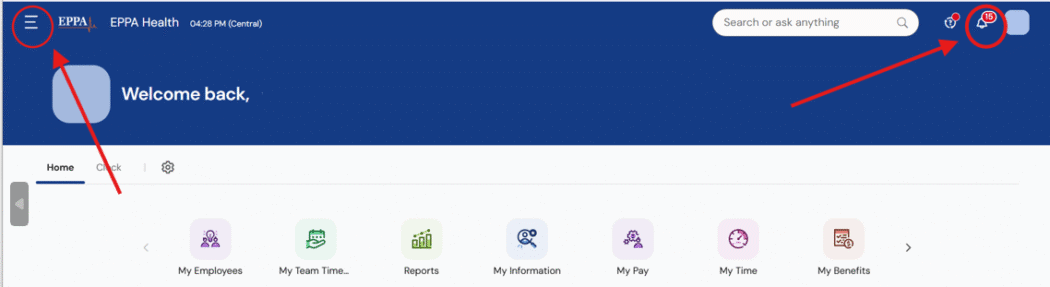
This section will help you understand how to locate the most important manager functions within UKG. Section details may vary based on individual roles and responsibilities assigned. As a manager, you will need to become comfortable using your menu and your notification bell.
Managing Your Notification Bell
Managers should review their notifications frequently. The following information details out recommentdations and what you will find when reviewing these notifications.
Notification Bell
Your notification is located in the top right-hand corner of your dashboard. The bell is one of the most important features in UKG for managers. The system will alert you with important information for necessary for your review.
It is strongly recommended that you review your notifications multiple times throughout the day.
-
My To Do Items
Accessible via the Bell, the My To Do Items section is a centralized, actionable dashboard hub designed for managers to efficiently handle pending, time-sensitive tasks related to your direct reports.
Timecard Requests: Timesheets submitted by staff pending approval.
Time-Off Requests: Pending vacation or sick leave requests.
Exceptions: Timecard issues like missed punches, unexcused absences, or long breaks.
Swap/Cover Requests: Requests from employees to swap shifts or find coverage.
Manager Actions: Directly Approve, Reject, or Modify requests within the panel.
-
My Notifications
Accessible via the Bell, the My Notifications feature for managers acts as a centralized, real-time messaging inbox—often accessed via a bell icon in the top-right corner of the screen—designed to streamline the management of employee requests, timecard exceptions, and approvals. It allows managers to stay informed about your team’s activities and act on pending tasks without navigating away from your current page.
System Messages: Alerts regarding request periods opening or closing.
Attendance Alerts: Notifications on perfect attendance or infractions.
Document/HR Alerts: Information regarding missing employee documents or pending signatures.
Overtime Warnings: Alerts that employees are approaching or have reached overtime thresholds.
Group Edit Results: Notifications confirming if a bulk update to employee timecards succeeded or failed.
-
My Checklists
Checklists for managers in UKG are automated, customizable tools designed to streamline HR processes, employee onboarding, performance management, and payroll, often triggered by specific events like a new hire. They allow managers to track progress, ensure compliance, and receive notifications for required tasks directly within your dashboard.
Onboarding Checklists: Steps to complete for new hires.
Compliance/Training: Checklists for on-the-job training (OJT) or policy acknowledgments.
Offboarding Tasks: Tasks related to employee termination.
Manager Actions: Marking items as complete, uploading documents, and signing off on tasks.
Understanding Your Manager Menu
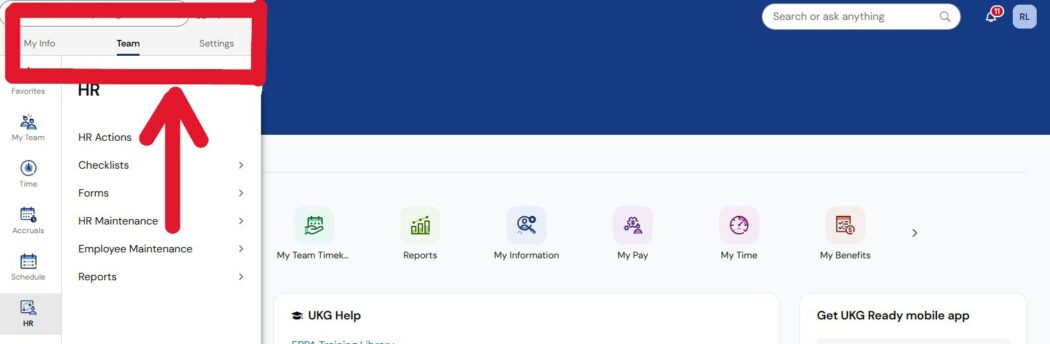
As a manager, when you click the menu in the top left corner, you will have access to three tabs: My Info, Team and Settings. The materials below will provide information on using these tabs to manage your team effectively.
-
My Info
This tab is used to manage your personal information and work-related tasks as an employee and individual contributor.
-
Team
This is the central hub for managing your direct reports. It provides visibility into employee data and allows you to perform supervisory actions.
-
Settings
This area is used for configuration and administrative preferences.
Managing Your UKG Tabs
My Info -for Managers
You will use the My Info tab to access and edit your personal information within the system.
There are several manager functions that are also found within the My Info tab. The sections below will help you navigate these functions as a manager.
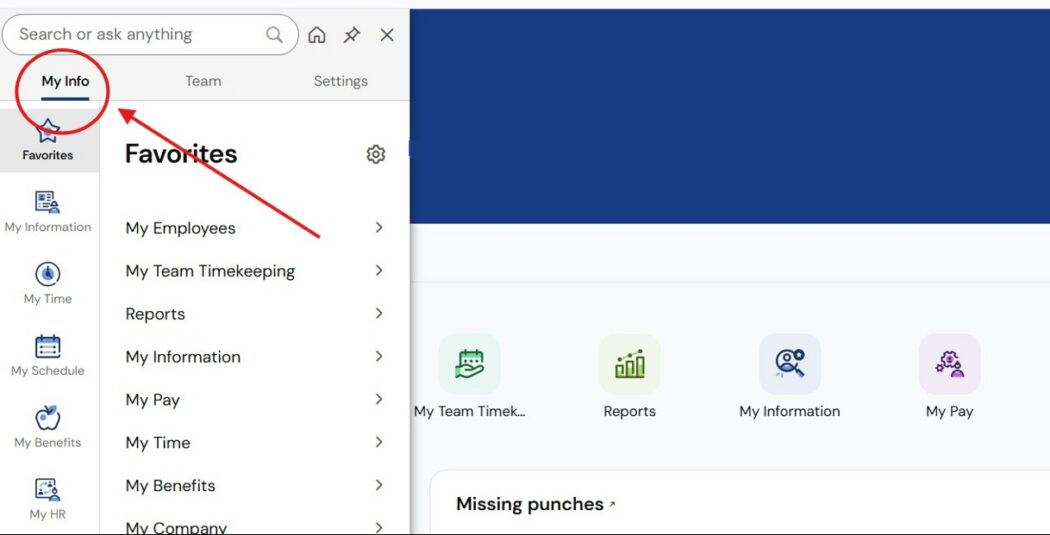
Use the employee training site for general user guidance on accessing and editing your personal information:
Delegations
As a manager, you may choose to delegate tasks and responsibilities to other employees. To access delegations, go to:
My Info > My HR > Delegations
Key Features of Delegations
-
Approval Authority:
The assigned “Delegate” can take action on your team’s behalf, including approving timesheets, time-off requests, and performance reviews.
-
Workflow Specificity:
You can delegate “All Workflows” or limit access to specific tasks, such as only timekeeping functionality.
-
Schedule Access
Delegations are configured with a Start and End Date, meaning the permissions automatically expire when you return.
-
Role Switching:
To act as you, the delegate must manually switch roles within their profile settings (often by clicking a gear icon or an arrow next to their name).
-
Notifications:
While you may still receive email notifications, the Delegate typically must log in and check their “To-Do” queue to see your pending tasks.
Delegation Training Materials:
Learning Center
As a manager, you also have access to UKG-established training documents and forums. To access the learning center, go to:
My Info > Help
My Learner Dashboard
Click SHOW MY LEARNING JOURNEYS to review all available and assigned learning.
You can browse available learnings and search for additional resources.
UKG Community
The UKG Community is your go-to guide and networking hub for mastering the platform. For managers, it’s a massive online portal where you can find expert answers, peer collaboration, product updates and training resources.
Team -for Managers
Managers will utilize the Team tab to manage most of their employee information. Options may vary depending on your role within the organization.
Open each section to find training materials, tips and tools to assist you in your role as a manager.
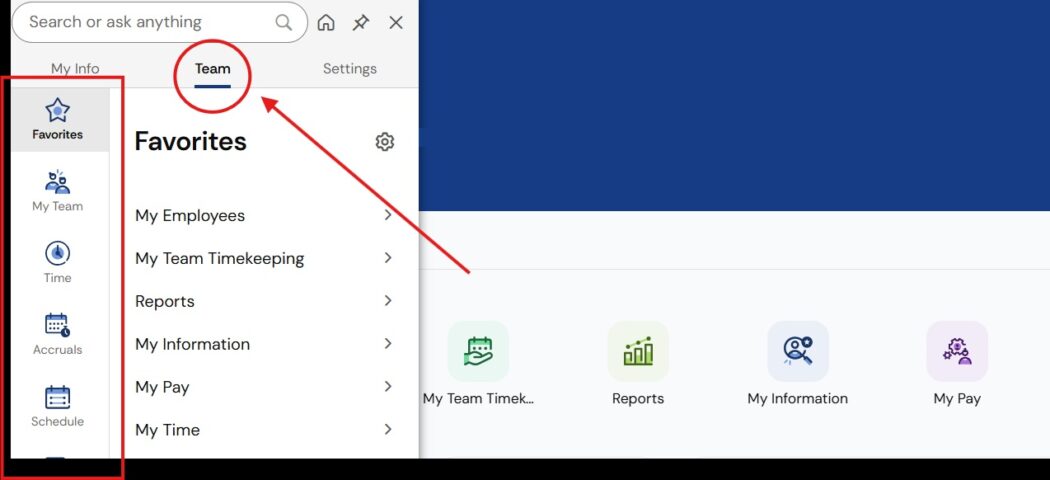
My Favorites
-
My Favorites
The items shown as favorites can be customized. The following list shows the default items selected by UKG. Additional information on each section is available below.
My Employees
Employee Information
Employee Password ResetMy Team Timkeeping
Timesheets Pending Approval
All Current Timesheets
All Timesheets By Pay Period
Time Off Requests Pending Approval
All Time Off RequestsMy Reports
My Saved Reports
Detailed Hours
Detailed Hours Overview
Calculated Time Summary
Time Off Calendar by Month
ExceptionsMy Information
My Profile
Update My Information
Update my Password
My To Do Items
My Workflow DelegationsMy Pay
My Pay Statements
View My Direct Deposit
Update My Direct Deposit
View My Tax Information
Update My Withholding
My W2sMy Time
My Current Timesheet
My Historical Timesheets
My Timesheet Change Requests
My Time Off Requests
My Account DetailsMy Benefits
My Benefit Plans
My Enrollment PlansMy Company
Org Chart
Documents
Announcements
Events
Time
-
Time Management
Here you will find time-related materials and training materials for managing time for your employees
-
Dashboard
Here you will find your individual manager dashboard. It can be customized to your preferences.
-
Timesheets
Here you will find time-related material and training guides.
Timesheet Approval Deadlines: 12:00 PM on payroll Monday
Timesheet Actions:
Pending Approval
By Pay Period
Current
All OpenTimesheet Management Learner Guide:
Timesheet Maintenance Learner Guide
Video Materials:
Timekeeping: Manager Role
Timekeeping: Breaks and Deductions
Timekeeping: ExceptionsTimesheet Training Materials:
Enrolling UR Employees in the UKG Timeclock
View Employee Timesheet
Approving Employee Timecards
Managing Exceptions on a TimesheetEditing Timesheets
Adding a Time Entry
Adding Extra Pay & Counter Adjustments
***Cost Center adjustments include: admin time, education, on-call, and training hours.
Split Time Allocation
Mass Time Edits
Change a Punch Interpretation on a TimesheetTimecard Reporting:
-
Tips & Timing: Processing Timesheets
Review Timesheets
- Check employee punches regularly
- Look for:
- Missed punches
- Duplicate punches
- Long shifts or unusual hours
- Confirm hours appear reasonable
Edit or Correct Punches
- Add or adjust punches when needed
- Include supervisor notes when making changes
- Communicate with the employee if clarification is needed
Approve Timesheets
Initial expectation:
✔ Do your best to be accurate
✔Ask questions if you are unsureTimesheets must be approved by the weekly payroll deadline
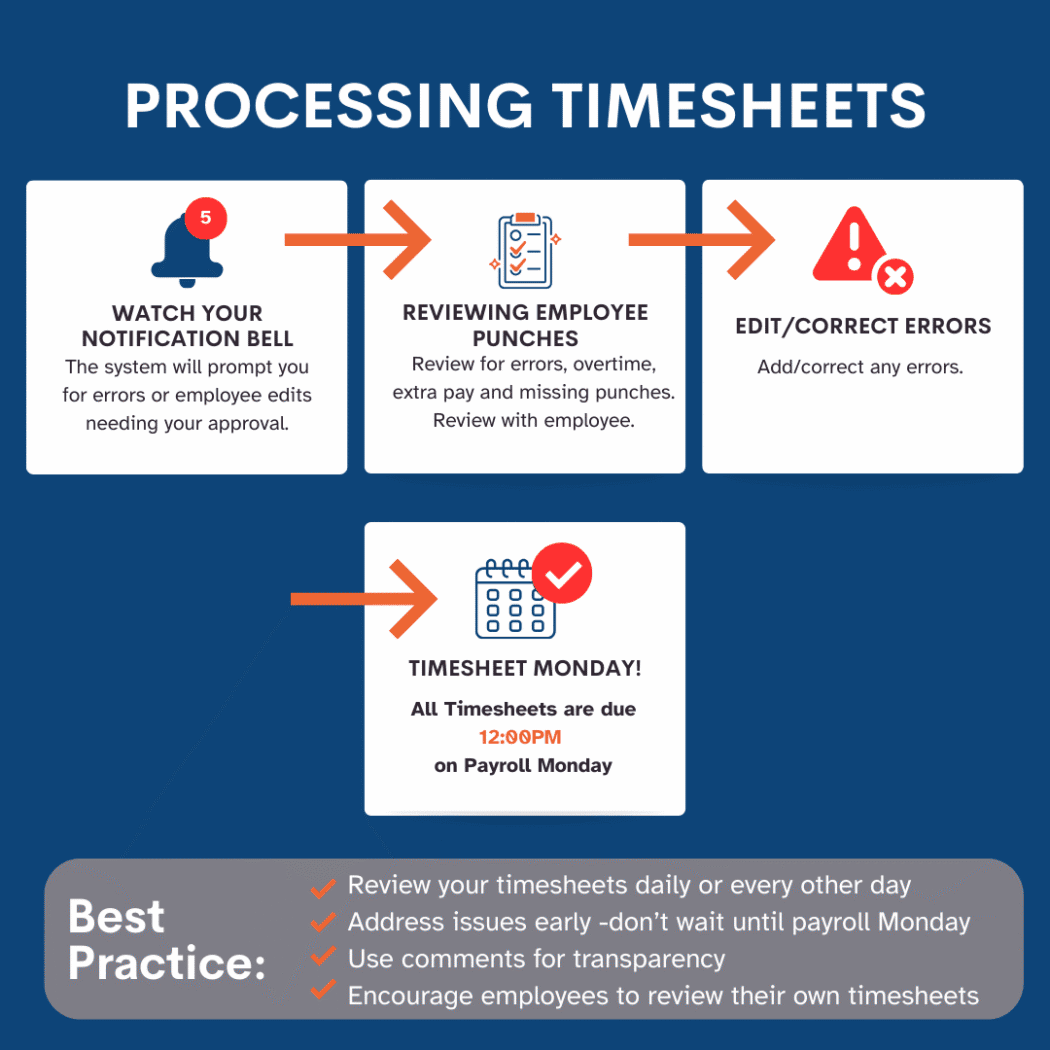
Time Sheet Deadlines:
Noon CST on Payroll Monday
-
Tips: Best Practices for Managers
-
What Must Be Paid (Non-Exempt Employees)
Minnesota & Federal (FLSA) Compliance
Pay for all hours worked, including:
- All time employees are allowed or required to work
- Pre/post-shift job duties (setup, login, closing tasks)
- Required training and meetings
- Travel between job sites during the workday
Never remove worked time, even if it was not approved in advance.
-
Overtime Rules
Overtime is paid at 1.5x after 40 hours in a workweek
No daily overtime requirement (MN or Federal)
Hours cannot be averaged across weeks
Supervisor Action:
Address unauthorized OT through coaching, not time edits
Review weekly totals before payroll
-
General Time Off Requests
General Rule –All time off requests:
Must be reviewed and approved timely
Must be submitted through the timekeeping system in UKG as well as QGenda, where applicable
Must align with available accrued balances
Must be coded correctly in UKG (PTO vs ESST)
Must be reviewed and approved timely manner
-
PTO (Paid Time Off)
Manager/Supervisor Responsibilities
✔ Confirm employee has sufficient accrued PTO
✔ Ensure correct pay code is used
✔ Review for scheduling and coverage impact
✔ Approve or deny based on policy and operational needPTO is employer-defined; follow policy for:
Unpaid time leave
Accrual caps
Carryover
Blackout periods
-
ESST (Sick & Safe Time)
What ESST Covers
Employees may use ESST for:
- Their own illness or injury
- Caring for a family member
- School or childcare closure
- Domestic violence, sexual assault, or stalking-related needs
Accrual Basics
- Used minimally in 15-minute increments
- Accrues at minimum of 1 hour per 30 hours worked
- Up to 48 hours per year, under the accrual policy
- Must be available for use as it accrues (no delay)
Manager/Supervisor Responsibilities
✔ Ensure ESST is used when applicable
✔ Do NOT require employees to use PTO before ESST
✔ Do NOT deny ESST if time is available
✔ Approve ESST without requiring details beyond MN ESST guidelines
✔ Ensure pay is issued when ESST is used⚠️ You may not:
❌ Require employees to find coverage before using ESST❌ Discourage or penalize use of ESST
❌ Ask for details beyond what policy allows -
Balance & Pay Verification
General Rule –All time off requests:
Before payroll closes:
- Confirm requests do not exceed available accrued time
- If insufficient balance:
- Follow policy (unpaid, partial paid, or future accrual)
- Ensure time off is reflected accurately on pay statements
Common Issues to Watch For
- Denials that conflict with MN ESST law
- ESST incorrectly coded as PTO
- PTO used when ESST should apply
- Negative balances without approval
- Time off taken but not recorded
Escalate to HR/Payroll if:
- You’re unsure whether time qualifies as ESST
- An employee disputes a denied ESST request
- A balance appears incorrect
- A request involves protected leave or accommodation
You’re unsure whether time qualifies as ESST
An employee disputes a denied ESST request
A balance appears incorrect
A request involves protected leave or accommodation
-
Meal & Rest Breaks
Meal Breaks
- Must provide, upon employee request, after working 6 consecutive hours
- Employees are required to notify supervisors at the beginning of each shift. Notification based on department policy
- Employer is allowed to schedule time and designate the time lunch is to be taken
- Meal breaks should not be scheduled at the beginning or the end of a shift
- Employer is not required to modify a scheduled shift duration for meal break
- Unpaid only if employee is fully relieved of duties, employee is to punch out/in for the duration or take 30 minutes for the auto punch if applicable
Supervisor Action:
- Provide adequate breaks, up to 15 minutes in duration, every 4 hours of work.
- Remove auto-deduct meals if employee works through them, for applicable employees
- Ensure meals are taken and recorded correctly
-
-
Overtime
This section provides direct access to the following:
Pending Approval
HistoryTraining Materials:
Timekeeping: Overtime (Video)
Viewing Employee Overtime History -
Time Off
This section provides direct access to the following:
All Open
Pending Approval
Request
History
Balances
Time Off CalendarTraining Materials:
-
Reports
This section provides direct access to the following:
Calculated Time
OverTime
Time Allocation
Time Off Calendar
-
Accruals
-
Run Accruals
Run reports of individual reports for accruals
-
Overtime
Run reports detailing overtime accruals
-
Balances As Of Date
-
Details
List of accrual details
Schedule
Schedule management will not apply to all managers. Use this section if you are managing schedules within UKG
-
Dashboard
Click for a calendar view
-
Team Setup
View and adjust your team setup.
Here you can view your team’s availability and preferences
-
Basic Scheduling
This section includes the following:
Employee Schedule Cycles
Generate Schedules
Schedules
HR
This section includes all the HR actions to ensure your employee information is accurate.
-
HR Actions
HR actions are digital request forms used to formally initiate official changes with HR.
This section includes all of the HR action forms available to you as a manager. Please view the training below for specific instructions on each form. Available actions may vary based on your individual role.
You can view Available, Open and Submitted HR Actions. Switch to the My Info section to manage your personal HR Actions here.
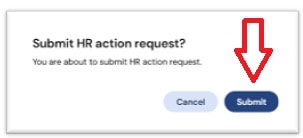
Please perform all requirements when submitting your HR Actions and make sure to click to submit to HR.
Current HR Actions & Training Materials:
Hire Employee
Involuntary Employee Termination
Voluntary Employee Termination
Status Change Request
Upload Documents to Human ResourcesSubmitting Documents to HR
Click the blue Submit to HR button to ensure your information is received by the HR team.
Service Level Agreements
Service level agreements will vary by the type of HR action. Use the outline below as a guide for HR and payroll processing and turnaround.
24 Hour Processing
Hire Employee
Involuntary Employee TerminationStandard Processing
Status Change Request
Voluntary Employee Termination
Upload Documents to Human Resources -
Checklist
The checklist sections under HR Actions are primarily used to manage employee lifecycles and administrative updates. Checklists that require your review will also show up in the bell/alert notification section on your dashboard
These checklists can be customized for you as a manager and may include:
- Employee Information
- Demographics
- Payroll & Withholding
- Timekeeping and Scheduling
- Onboarding/New Hire Paperwork
- Benefits
- Performance Reviews
-
Forms
Here you can find forms available within the UKG system.
You can search by Available, Open and Submitted forms.
-
HR Maintenance
In this section, you will find the following:
Assets Assignments
Employee Documents
Incidents
-
Employee Maintenance
In this section, you will find:
Badges
Password Reset
Password Unlock
Termination Details
-
Reports
In this section, you will find access to the following:
Calendar
- Anniversary Calendar By Month
- Anniversary Calendar By Week
- Anniversary Calendar By Year
- Employee Calendar
Employee Maintenance
- Base Compensation History
- Job Change History
HR Maintenance
- Employee Contacts
- Employee Headcount
- Employee Roster
- Employee Status Change
- Pay Grades (assigned to employee)
- Seniority
- Workflow Delegation
Turnover
- Turnover Statistics
Learning
This section allows you to view credentials for your team
-
Credentials
Here you can view credentials for all your team
Training Materials:
Adding Credentials for Managers
How to View Expired Credentials
Recruitment
This section will aid in your success in hiring new employees
-
Job Requisition
Here you will find any available job requests for your department
-
Candidates
Here you will find information on the following:
Applicants
Applicant Interviews
Recruitment Questionnaire Answers
Job Applications
You can communicate directly with
-
Offer Letters
All employee offer letters will be stored here
-
Applicant Check list
Both the applicant Checklist and the Checklist Items are stored here
Payroll
This section allows you to view specific labor distribution reports for your team
-
Labor Distribution (Detail)
This report allows you to see the full detail of the report
-
Labor Distribution (Summary)
This report provides a summary of the detail
-
PST View By Account
View your teams PST by account
-
PST View By CC
View your teams PST by CC
-
PST View By Account Within CC
View your teams PST within CC
-
PST View By CC Within Account
View your teams PST within account
-
Accordion Item Title
General Assistance
Support
You’re not on your own — support is available.
Contact the IT service desk for system support or access issues: servicedesk@eppahealth.com
Contact HR for time and benefit questions: humanresources@eppahealth.com
Contact payroll for pay-related concerns: payroll@eppahealth.com
We’re Here to Support You
How Can We Help?
Can’t find what you need, let us know how we can help.