

EPPA Training Library
Welcome to UKG
EPPA has created a UKG Conversion checklist and FAQs to assist in your UKG learning journey.
Understanding UKG & Getting Started
-
What is UKG?
UKG is EPPA and The Urgency Rooms new system for managing your work-related information in one place. It replaces multiple tools by giving you a single, secure location to clock in and out, submit your timecard, request time off, and view pay-related information.
UKG is designed to be easy to use on both desktop and mobile, and helps ensure your time and pay are accurate.
-
What can UKG do for me?
UKG gives you more visibility and control over your time and pay without needing to wait for paper forms or manual updates. With UKG Ready, you can:
- Clock in and out (desktop, mobile, or time clock, where applicable)
- Review and submit your timecard each pay period
- Request and edit time off and view accrual balances
- View pay statements and tax documents
- Update personal information such as contact details and direct deposit
- Receive important notifications and reminders related to time and pay
-
Where do I go if I need help?
If something doesn’t look right with your time or pay, please reach out as soon as possible so it can be corrected before payroll is processed. You’re not on your own — support is available.
- Start with this training page for step-by-step guides and videos
- Ask your manager or supervisor for help with timecards, punches, or approvals
- Contact HR for time and benefit questions: humanresources@eppahealth.com
- Contact payroll for pay-related concerns: payroll@eppahealth.com
- Contact our IT service desk for system support or access issues: servicedesk@eppahealth.com
-
How Do I Log Into UKG?
If this is your first time using UKG, you will need to log in to get started. Look for a login email from UKG with your temporary username and password. The email will come from: noreply@sasshr.com
Logging Into UKG
Training Documents
Logging In and Authenticating with OKTA
Downloading The UKG Mobile App (if applicable)Video
Navigating the Mobile App (if applicable)
Understanding Your UKG Dashboard
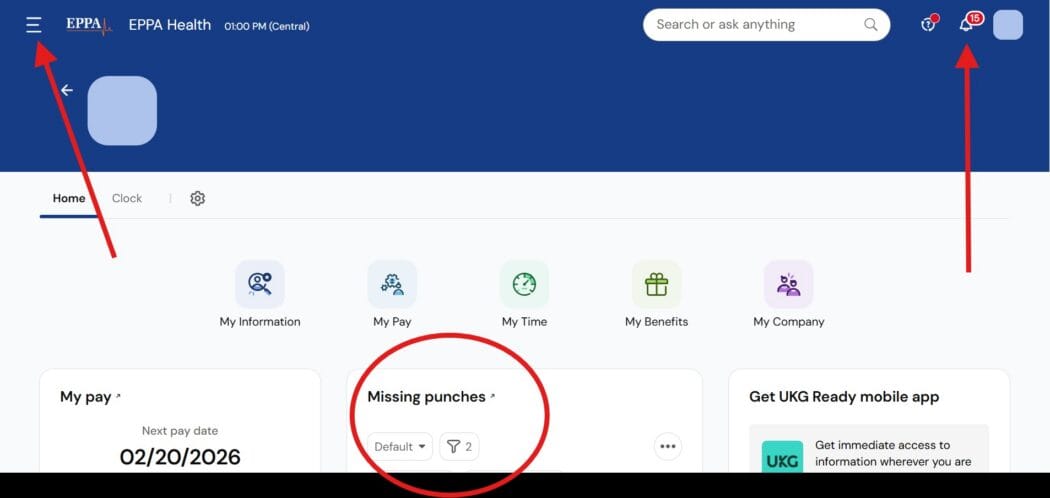
Your UKG dashboard may look different depending on your role. The dashboard is intended to help you easily locate the information that is most important to you as an employee.
Dashboard View
Helpful Dashboard Resources
-
Alert Bell
Your notification is located in the top right-hand corner of your dashboard. The bell is one of the most important features for employees. The system will alert you with important information for necessary for your review.
Your notification bell provides you with three tabs:
My To Do Items, My Notifications, and My Checklists
-
My To Do Items
Here you will find items that require action from you:
Missing Punches: Notifications that require you to go to your timesheet and enter a forgotten clock-in or clock-out punch
Task Assignments: Specific “To Do” items assigned by HR, such as acknowledging a new policy or signing a document.
-
My Notifications
This is your informational feed. These messages usually confirm that an action has taken place or alert you to a status change:
Payroll Alerts: Messages regarding direct deposit changes or the availability of new pay stubs
Request Status Updates: Confirmation that your own time-off request was approved or denied by your manager.
System Alerts: Notifications when a timesheet has been submitted or signed off.
Company Announcements: Broadcast messages or huddle updates sent by your organization to all employees.
-
My Checklists
This tab houses structured, multi-step workflows that often involve uploading documents or completing several related forms:
Offboarding:
A series of final tasks for employees leaving the company, such as equipment return checklists.Onboarding/New Hire Tasks:
A list of items for new employees, such as verifying personal info, tax withholding forms (W-4), and setting up direct deposit.Compliance & Certifications:
Items requiring you to upload copies of licenses, TB test results, or drug screen documents.Open Enrollment:
Step-by-step guides for selecting or changing benefit plans during the annual enrollment period.
-
-
UKG Menu
Training Materials:
Becoming Familiar with Your UKG Dashboard
Employees will see two tabs in their UKG menu. My Info and Team.
Scroll down to Utilizing Your Menu in UKG for more.
-
Missing Punches
Missing punches will be called out on your dashboard when you log in. If you punch in via mobile or using a UKG facial recognition timeclock, an alert will display on your phone or the timeclock the next time you attempt to clock in.
-
Clocking In & Out
Hourly Employees: How and where you clock in depends on your role. Check with your manager or supervisor to determine the correct method for clocking in based on your role.
Training Materials:
Clocking In and Out –Desktop
Clocking In and Out –Mobile-Scribes
Clocking In and Out –Urgency RoomsVideos
Clocking In and Out -Mobile-Scribes.
Editing punches is covered in the My Time section below.
Utilizing Your Menu in UKG
Employees will see two tabs in their UKG menu. My Info and Team.
These training materials will provide information on using these tabs to view and update your information within UKG.
-
My Information
Here you have access to view your personal information. Each section shows the current information in UKG for each category.
- My Profile: Changes to your profile should be requested using the appropriate HR Action noted below.
- Change Password
- Change Security Question
- Notification Preferences
Training Materials:
-
My Favorites
The Favorites section is designed to give employees quick access to their most frequently used, personal, or relevant tools and information.
- My Information
- My Pay
- My Time
- My Benefits
- My Company
Details for each section are in the dropdowns below. The following are the defaults chosen by UKG
Here is where you can view and manage your time, time off, and historical information. Open each section to find additional information and training materials.
Timesheet
-
Current Timesheet
The Current Timesheet page serves as the central hub for employees to track their hours, manage schedules, and ensure they are paid accurately. You can view and make changes to your timesheet.
You must SUBMIT your timesheet for approval at the end of each pay period.
Time Training Materials:
How to Submit Your Timesheet for Approval
Viewing My Timesheet
Making Changes & Edits to Your Timesheet
Making Changes to Your Location/Cost CenterBe sure to click Submit Changes when you are finished making any edits. The request will be sent to your supervisor or manager for approval. Once it is approved, your timesheet will be updated.
If your timesheet is rejected, you will receive an email and can follow the prompts in your alert bell for My Notifications or My To Do Items.
-
Historical Timesheets
In the Historical Timesheet (or Historical Corrections) section of UKG, employees manage their records for pay periods that have already been signed off and processed for payroll.
Key Characteristics of Historical Edits:
Visual Indicators: Historical corrections are often marked with a diamond icon or a specific note like “Edited after sign off” to distinguish them from regular entries.
Payroll Impact: Approved historical edits typically trigger a “historical correction” that is paid out on the next available pay period rather than re-opening the old one.
Locked Interface: The background of historical timecards may appear gray to indicate they are in a “signed-off” state and require specific “Enable Edits” permissions to change
-
Change Requests
In the Change Request section of UKG, employees see a personalized view proposing specific adjustments to their time records and a tracking log to monitor the status of those requests.
Time Off
-
Request
Initial Request Variation
Not all employees will submit their initial time off in UKG. Your manager or supervisor will inform you where you are required to submit time-off requests
UKG Requests & Time Edits
Use the materials below to request time off and edit requests in UKG. The request will be sent to your supervisor or manager for approval.
You will be notified if the request is approved or denied. Follow the prompts in your alert bell for updates.
Training Materials:
Adding, Editing & Updating Time Off -
Time Off History
Here you will be able to view your historical time off requests.
You can choose to view the following periods:
- Next 365 days
- Past 365 days
- Next 3 months
- Past 3 months
-
Balances
Here you will be able to view your Time Off Balances. You can also make time off requests directly from this page.
You can view PTO, ESST, and Floating Holiday hours as they apply to your position.
You can view the following for each category:
- Expiring Value
- Available Balance
- Current Accrued
- Projected Accrued
- Current Balance
- Projected Balance
- Taken
- Scheduled
- Requested
- Previous Carry Over
- Projected Carry Over
-
Calendar
Here you can see a calendar view of your time off requests. You can also choose to link to your personal calendar by clicking Sync Calendar
-
Accural Details
The Accrual Details page is where employees track their “earned” time, such as vacation, sick, and personal days.
Training Materials:
-
Historical Balances
This view shows you a view of your historical balances. This is a snapshot of how you reached your current balances.
Here you will see your scheduled shifts and any upcoming holidays or scheduled time off. Schedule views and capabilities may vary by employee and role. Open each section to find information and training materials.
-
Schedule
Here you will see your scheduled shifts and any upcoming holidays or scheduled time off. Schedule views and capabilities may vary by employee and role.
Training Materials:
-
Availability/Preferences
Employees communicate to the system (and their manager) exactly when they are able or willing to work. Employee views and functionality may vary in this section.
Here you will your benefit and enrollment opportunities. Open each section to find additional information.
-
Enrollment
Here you will find information to your benefit and/or upcoming benefit changes.
Open enrollment information will be available here during enrollment periods.
You can also submit a life change event. Select Get started to begin the process. Once you click Submit, your changes will be sent to HR for review.
Qualifying Events:
- Beneficiary Changes
- Birth/Adoption
- Change in Spouse
- Death of Spouse/Dependant
- Divorce/Legal Separation
- Leave of Absence
- Marriage Partnership
- Newly Eligible
- Other Loss of Coverage
- Position Change
- Turning 65 (Actively Employed)
-
Benefit Plans
Here you can see the self-service benefits section, including Basic Life, Dental, HSA, LTD, and Medical.
You can view your benefit plans and edit your beneficiaries.
You have access to view current, future, and waived benefits.
In the My HR section, your three categories represent the active tasks and formal records needed to manage your employment with EPPA and The Urgency Room: HR Actions, Checklists, and Forms. Open each section to find information and training materials.
-
HR Actions
HR actions are digital requests used to formally initiate official changes with HR. Each employee will have three tabs at the top categorizing their HR Actions: Available, Open, Submitted.
Click on any tab to start completing your task. Be sure to click SUBMIT to ensure your HR action is sent to the appropriate team for processing.
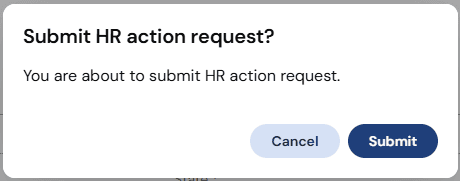
Always verify your HR action appears in the submitted tab when you are finished.
-
Available
.
HR actions Click on Start on the right-hand side to begin the process.
To complete your HR Action, click SUBMIT to ensure your HR action is sent to the appropriate team for processing.
Example HR Actions You May Find:
- My Update -Address
- My Update -Contacts
- My Update-Credentials
- My Update -Direct Deposit
- My Update -Name Change/Marital Status
- My Update -Phone/Email
- My Upload -Documents
- Vaccine Accommodation -Medical
- Vaccine Accommodation -Religious
-
Open
Here you will find the CURRENT HR Actions that need to be completed
-
Submitted
Here is a list of all of your completed HR Actions.
The type of HR actions available to you as an employee will vary. When an HR Action is added or its status changes, the Bell Icon (in the Notification Center) is the primary way the system will alert you. Most HR actions that are added will also trigger an email from UKG (noreply@sasshr.com).
-
-
Checklists
Employees will access assigned checklists here. When a new checklist is added or its status changes, the Bell Icon (in the Notification Center) is the primary way the system will alert you.
You can view both Open and Submitted Checklists here.
-
Forms
Here is where you will go to both view and edit necessary employment forms.
-
Government Forms
Here you will find access to view and edit the following forms:
1095-C
1099-MISC
1099-NEC
I9s
W2
WithholdingYou can click on the forms to edit the information. You must click on the blue SUBMIT button to ensure your information is sent to HR for processing
Training Materials:
-
Other Forms
The Other Forms section is a “catch-all” digital filing cabinet for non-tax and non-standard company documents. While “Government Forms” holds W-4s and I-9s, Other Forms is used for internal, operational, or industry-specific paperwork.
Documents stored here will evolve over time.
-
My All Forms
Here you will find a list of all forms available to you as an employee.
-
The Career section in UKG is a specialized hub focused on an employee’s professional growth and internal opportunities within the organization.
-
Search for Jobs
Employees can browse and apply for new roles within the organization without leaving the platform.
- View Internal Postings: Access a dedicated “My Careers” board to see open requisitions specifically for current staff.
- Job Descriptions: View full details, including required qualifications and responsibilities, for any internal opening.
-
Performance
This area will store historical incident information.
-
My Learning
Employees can go here to easily locate any assigned courses and curricula and track their progress.
Here you are able to access information related to your pay, direct deposits.
To access and edit your tax withholdings, see the Forms section below.
-
Pay History
Here you can view recent and historical pay information. Set date range for past records
-
Predict My Pay
Here you can modify information to show a payment prediction. These are predictions and not actuals.
Make your selections and select the blue Calculate button in the top right.
Deductions and Contributions
Regular Pay
Federal Taxes
State Taxes
Overtime & Additional Earnings
-
Forms
Here you will find forms related to your pay. You can view, export, and add forms within this section.
Available Forms
Withholding
W2
1099-MISC
1099-NEC
Training Materials:
-
Direct Deposits
Here is where you find your current direct deposit information.
To make changes to your direct deposit, you will need to complete an HR Action and submit your request.
Training Materials:
-
Tax Information
Here you can view your General, Federal and State tax deductions.
You can only view your tax information in this section. You will need click into the Forms section to edit your current withholding.
Training Materials:
-
Total Compensation Statement
Here you can view your total compensation statement. This functionality may not be available for all employees and roles
Training Materials:
-
Benefits
Here you can view your current benefits enrollment information
-
My Company
Here you will be able to review the following:
Historical Balances
Documents
Announcemnts
Events
Calendar
Accrual Details
Training Materials:
Here you will find information specific to EPPA and The Urgency Room.
-
Organization Chart
Access to available organizational charts. Information and view will be specific to your role
Training Materials:
-
Documents
Here you can link to the library for all your current documents
Training Materials:
-
Announcements
-
Events
Here you would find any upcoming events, including dates and times
Here you can view time-related reports
-
My Completed Reports
Here you can view historical reports
-
Time Reports
-
Calculated Time
Here you can review the following:
Detailed Calculated Time
This “Counters” report reveals the “behind-the-scenes” math performed by the UKG calculation engine. Key features of this report include:
- Daily Calculation Summary: It provides a calculation summary for each pay code on each day, allowing you to see exactly how your total hours are being split.
- Pay Code Breakdowns: It lists the “counters” (accumulators) for various categories such as Regular Time, Overtime, Double Time, and Shift Premiums.
- Compliance & Audit: It is often used to ensure that complex labor rules (like overtime after 8 hours in a day or specific shift differentials) are being applied correctly before payroll is finalized.
- Customizable Views: You can typically use the ellipsis (…) menu within the report to add or remove specific columns, such as different types of overtime counters, to see only the data relevant to your pay rule.
Detailed Corrected Time
Show enhanced details of any of your time corrections.
-
Time Allocation
This section refers to how your worked hours are distributed across different labor categories or cost centers.
This is helpful for employees who:
- Work Multiple Jobs: It displays how many hours were allocated to each specific role or position.
- Transfer Departments: If you “clock in” to a different department or location, the allocation section identifies the specific Cost Center or Labor Distribution that will pay for those hours.
-
Here you will find a link to the UKG Learning Center.
Click to review information and tools to assist in your UKG journey.
We’re Here to Support You
How Can We Help?
Can’t find what you need, let us know how we can help.